
Monday

Word 2010 Creating a Table of Contents

Did you know...

You can create a Table of Contents with just two clicks of the mouse if you set your document up right?

The first thing you need to do is make all heading styles.  Use Heading 1, Heading 2, Heading 3, etc.

Styles are found on your Home Ribbon...


To apply a style select the heading and click on the desired level of heading such as Heading 1, Heading 2, etc.
Once all Headings have a Heading style applied to them, you are ready to create your table of contents.  Anything you have put a Heading style on will automatically appear in the Table of Contents.

  • At the top of the page for the table, enter the text Table of Contents
  • Press enter once to put the cursor where you want the actual Table of Contents to appear
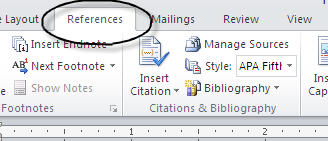
  • Click on the References ribbon

  • On the right side of the ribbon, click on Table of Contents

  • Click on the format you want for you Table of Contents
  • A Table of Contents will be inserted where your cursor is blinking. The Tab that says Update Table will not print out
  • Now, make changes to your document, adding more heading, deleting headings, adding text to move headings onto a different page, then...
  • Click on Update Table on the tab at the top of the Table of Contents and the change you have made will automatically appear in your Table
  • Doesn't work for you?

We help you like your computer.


    Wednesday

    Create One Adobe File From Several Small Adobe Files

    Did you know...

    You can create one main pdf file in Adobe Standard or Adobe Professional with a very simple method.

    No pictures needed to illustrate this...

    • Open Adobe Standard or Professional
    • Click on file
    • Click on create pdf
    • Click on from multiple files

    You will get a window that will allow you to add files.

    • Navigate to the location where you have saved your files
    • Select all of the files you want to include (you can select non-contiguous files by holding down the Ctrl key as you click on each one)
    • Use the Up and Down arrows to put the files in the order you want them to appear in your new document
    • Click on Next
    • If the files are in the order you want them, click on Create (if not click on back and rearrange them)

    You will then save the document and your new adobe document is complete with all the little parts into one big document in the order you want them.

    Doesn't work for you?
    Email me at grandberry@gmail.com


    We help you like your computer.

    Friday

    Word 2007 Tabs

    Did you know...

    it is easy to set tabs in Word 2007?

    First, you need a little information. This is the tab selector button with the left tab showing.

    It is found between the horizontal ruler at the top of your page and the vertical ruler on the left side. You need to be sure your ruler is showing. If it is not click on the View tab...

    Click on Ruler

    See? There is the selector tab to the left of the horizontal ruler
    When you click on the tab selector button it changes. It toggles through the various types of tabs available to you. There are several, we will only talk about the most common:

    Left- it is the default tab showing most of the time (unless you change it). When you set a left tab the text will move to the right as you type
    Center-the text will center over the tab


    Right-the text will move to the left when you use the right tab


    Decimal-the text will align over the decimal point, generally used for dollar amounts

    To set a tab, simply get the type of tab you want showing on the tab selector and then click on the ruler where you want the tab

    If you were typing a list like this:

    You would set a left tab for the first column, a center tab for the second column, a decimal tab for the third column and a right tab for the fourth column. The tabs on your ruler will look something like this.

    To remove a tab, simply click and drag the tab off the ruler onto the page. It will go away.

    As with all things in Microsoft, there is another method. You can open the Tabs setting window and set your tabs there if you know where you want them on the ruler.To open the Tabs setting window click on the selector arrow on the Paragraphs group (found on the Home Tab)
    The Paragraph formatting window will pop up, you then need to click on the Tabs button at the bottom.
    The Tab setting window opens, here you can simply type in the position on the ruler and click Set.
    You can also set dot leader tabs by selecting the dots under the Leader section.
    The important thing to remember is that each time you enter a tab you must click on set before closing this window or the tabs will not be set for you.

    You can also use the window to easily clear all tabs.
    As always, if you have questions, feel free to send me an email

    Doesn't work for you?
    grandberry@gmail.com

    Email me at

    We help you like your computer.

    Comments encouraged.